Download NepalHRM WorkPulse
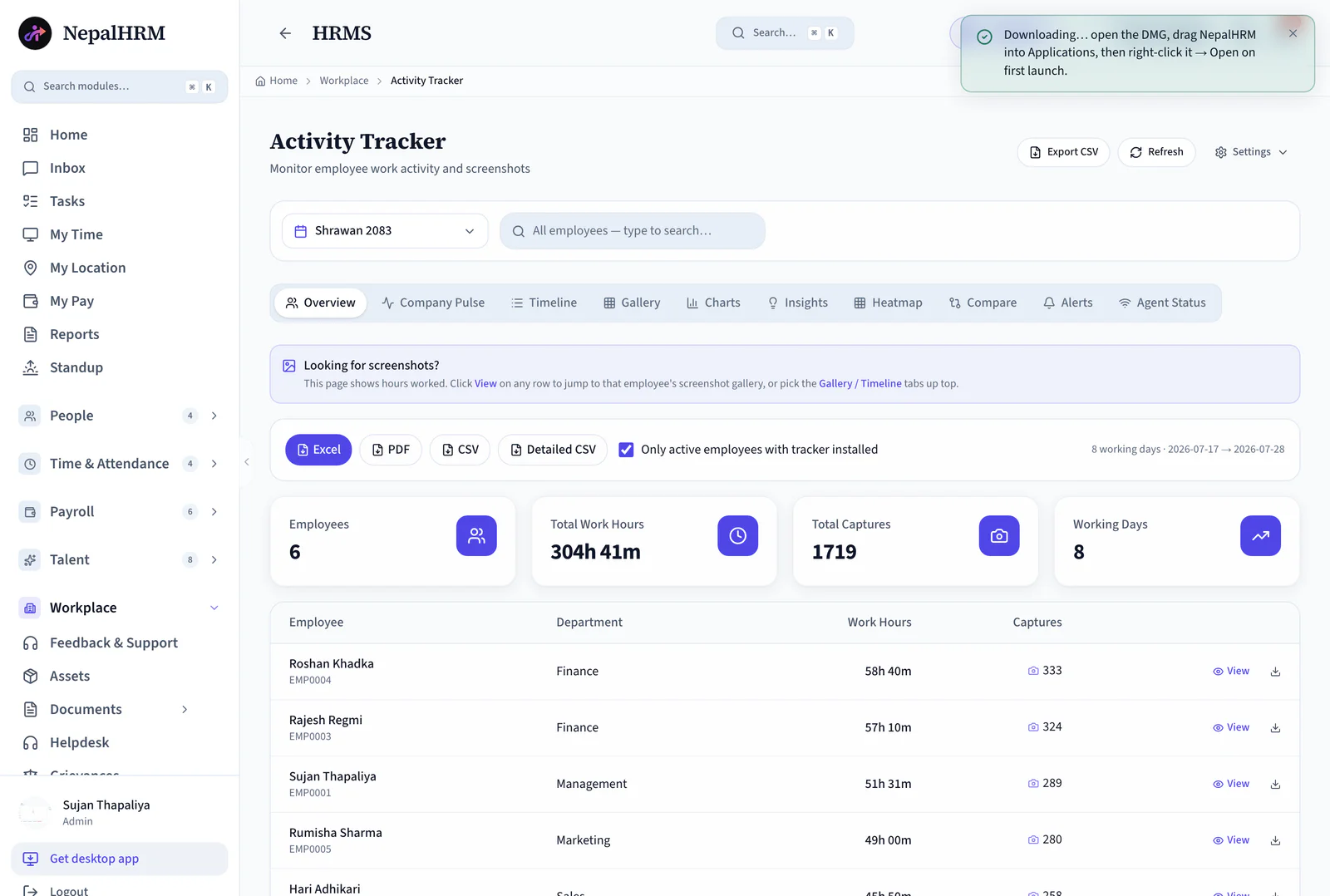
The desktop time tracker behind NepalHRM's Activity Tracker. It records work hours, periodic screenshots and idle time from the system tray or menu bar, and syncs them to your dashboard, filtered by Nepali month. Free to download, signed and notarized for macOS.
Three Downloads, One Tracker
Macs ship with two different chip families and they need different binaries, so choose rather than guess. Everything else is identical.
Windows
Windows 10 / 11, 64-bit
HRMSTrackerSetup.exe · About 20 MB
Or take the standalone .exe (no installer, no start-at-login, for IT-managed rollouts).
Mac (Apple Silicon)
M1, M2, M3 and M4 Macs
Most Macs sold after late 2020
WorkPulse-arm64.dmg · About 26 MB
Mac (Intel)
Intel-based Macs
Most Macs sold before late 2020
HRMSTracker-x86_64.dmg · About 27 MB
Not sure which Mac you have?
Open the Apple menu at the top-left of your screen and choose About This Mac. A Chip row naming an Apple M1, M2, M3 or M4 means the Apple Silicon build. A Processor row naming an Intel Core i5, i7, i9 or Xeon means the Intel build.
Small Program, Complete Record
WorkPulse only collects. The reading happens on the web, across the ten views of the Activity Tracker.
Counts the working day
Starts when the employee starts and runs in the system tray or menu bar. Hours land on the Activity Tracker overview for the Nepali month you pick.
Periodic screenshots
Captures at the frequency an admin sets in Settings, not continuously. Every capture is browsable per employee in the Gallery.
Idle time, separated
Time at the desk and time away from it are recorded apart, so a billed hour means an hour of work.
Reports its own status
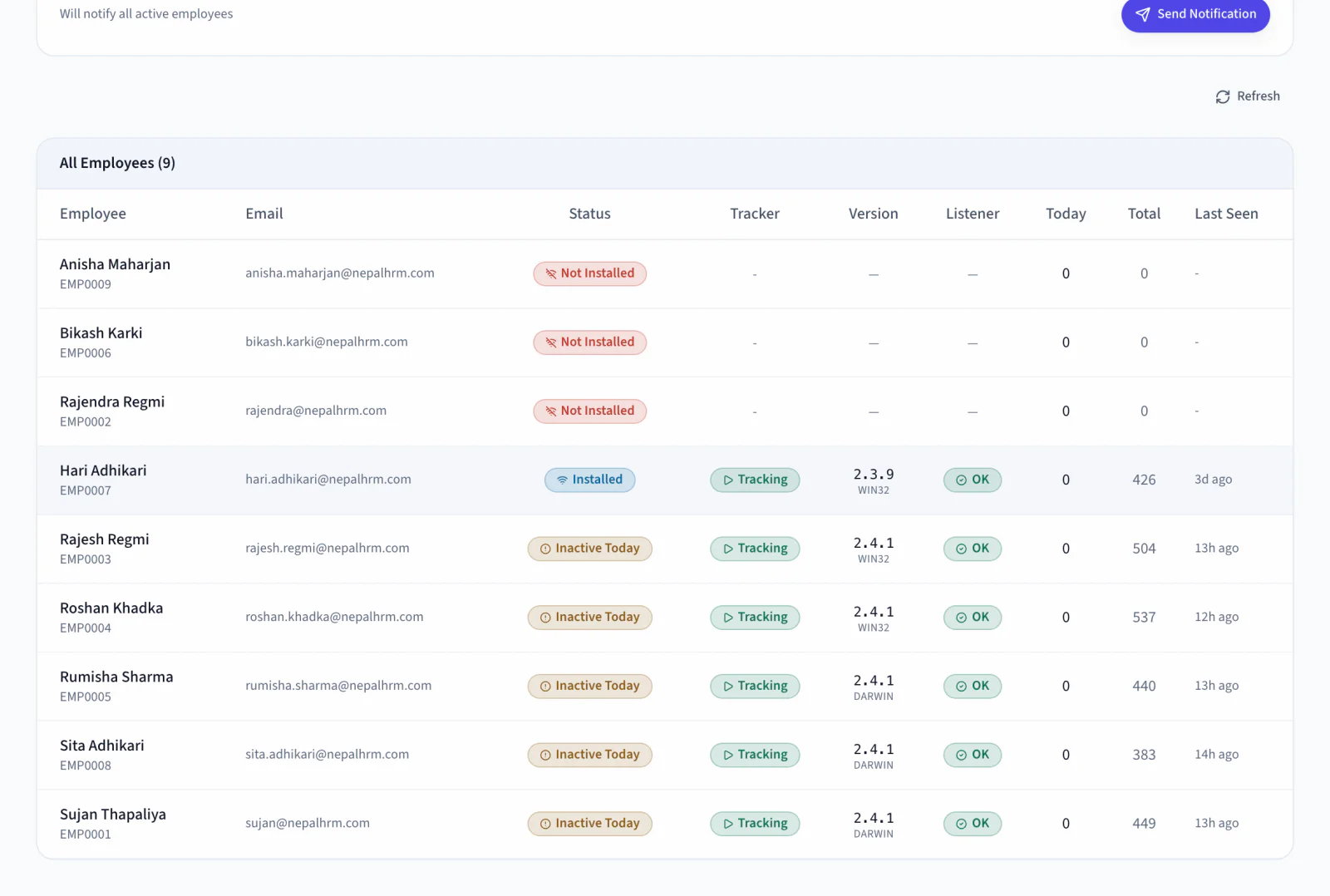
The Agent Status tab shows who has it installed, the version they are on and when they last reported, so a silent agent is visible before it becomes a dispute.
See what the collected data turns into on the Activity Tracker page, or read how it sits beside biometric punches in attendance.
Four Steps on Either Platform
Installation takes a couple of minutes. The only real difference is what the operating system asks you for on first launch.
Windows 10 & 11
- 1Run the installer
Open HRMSTrackerSetup.exe from your Downloads folder.
- 2Clear the SmartScreen prompt
Windows shows a blue "unrecognized app" dialog. Choose More info, then Run anyway. It appears once.
- 3Keep start-at-login checked
Accept the default install location and leave the start-on-login option ticked, so tracking survives a reboot.
- 4Sign in
WorkPulse opens when the installer finishes. Sign in with your NepalHRM email and password, then check for the tray icon next to the clock.
macOS 11 and later
- 1Open the disk image
Double-click the downloaded .dmg. A window opens with the app and an Applications shortcut.
- 2Drag WorkPulse into Applications
Drag the NepalHRM WorkPulse icon onto the Applications folder beside it.
- 3Launch it
Open WorkPulse from Applications. The build is notarized, so it opens on a double-click without a Gatekeeper warning.
- 4Grant Screen Recording and Accessibility
On first run macOS asks for both. Turn WorkPulse on under System Settings, Privacy & Security, then relaunch it.
macOS: opens on a double-click
Both Mac builds are signed with a Developer ID certificate issued to Yoddha Lab and notarized by Apple, and the ticket is stapled to the disk image, so first launch works even with no internet connection.
Windows: expect one SmartScreen prompt
The Windows installer is not code-signed yet, so SmartScreen shows an "unrecognized app" dialog the first time you run it. Choose More info, then Run anyway. We would rather tell you that here than have you meet it unwarned.
What You Need Before Installing
| Item | Requirement | Notes |
|---|---|---|
| Windows | Windows 10 or 11, 64-bit | Installer or standalone .exe |
| macOS | macOS 11.0 Big Sur or later | Separate Apple Silicon and Intel builds |
| Account | An existing NepalHRM login | The tracker signs in, it does not create accounts |
| Permissions (Mac) | Screen Recording and Accessibility | Requested on first launch, revocable in System Settings |
| Network | Outbound HTTPS to nepalhrm.com | Captures queue locally and sync when the connection returns |
Both Sides Can See It Running
WorkPulse is built for monitoring an employee knows about. It installs openly on a company machine, sits visibly in the tray or menu bar, and reports its own status back to the dashboard. The record it produces settles a billing question or an hours dispute in either direction.
- Its status is visible to the employee and to HR in the same Agent Status tab.
- Capture frequency is an administrator setting, not a hidden constant.
- Idle time is separated rather than quietly counted as work.
Looking for Something Else?
WorkPulse is the tracker. These are the other things people arrive on this page hoping to find.
NepalHRM desktop app
The full HR and payroll workspace for administrators, as a native Windows and macOS app. A different program from WorkPulse.
See the desktop appMobile app
Attendance check-in, leave requests and payslips for every employee, plus team chat on Enterprise. Free on Google Play and the App Store.
Get the mobile appGuides and PDFs
The product brochure, pricing sheet, onboarding guide, training manual and comparison sheet, all downloadable.
Browse resourcesBefore You Install
From this page. Pick Windows, Mac (Apple Silicon) or Mac (Intel) and the installer downloads directly. You do not need to sign in to download it, only to use it.
Open the Apple menu at the top-left of the screen and choose About This Mac. If the Chip row names an Apple M1, M2, M3 or M4, take the Apple Silicon build. If it names an Intel Core i5, i7, i9 or Xeon, take the Intel build.
Yes. Both Mac builds are signed with a Developer ID certificate issued to Yoddha Lab and notarized by Apple, and the notarization ticket is stapled to the disk image. That means the app opens on a double-click, and it still opens if your machine is offline on first launch.
The Windows installer is not code-signed yet, so Microsoft Defender SmartScreen does not recognise the publisher and shows a one-time warning. Choose More info, then Run anyway. Code signing for the Windows build is on the roadmap; until it lands, that prompt is expected rather than a sign of a bad download.
Work hours, periodic screenshots at the frequency your administrator sets, and idle time. It is a disclosed tool: it is installed openly on company machines, its status is visible to both sides in the Agent Status tab, and the same record protects the employee and the employer.
Yes. The agent keeps recording locally and syncs to your dashboard once the connection returns, so a Kathmandu power cut or an ISP outage does not create a hole in the day.
The tracker itself is free to download, but it reports into the Activity Tracker module, which is enabled per plan. Check the pricing page or ask your administrator whether your company's plan includes it.
No, they are two different programs. WorkPulse is the lightweight agent that records hours on an employee's machine. The NepalHRM desktop app is the full HR and payroll workspace for administrators. You can run both on the same computer.
Still stuck? Email info@nepalhrm.com or open support.
Put the Workday on the Record
Install WorkPulse on the machines you track, set the capture policy once, and read the month in ten views. Every billed hour backed by evidence.
- No minimum commitment
- Nepal IRD compliant
- Free onboarding
- Cancel anytime