Shift & Overtime Management Without Manual Tracking
Define shifts with grace periods, night handling and weekly off days, assign fixed or rotating rosters, build and publish the week's schedule, and pay overtime correctly. All connected to attendance and payroll in NepalHRM.
- No credit card
- Set up in one day
- Free onboarding
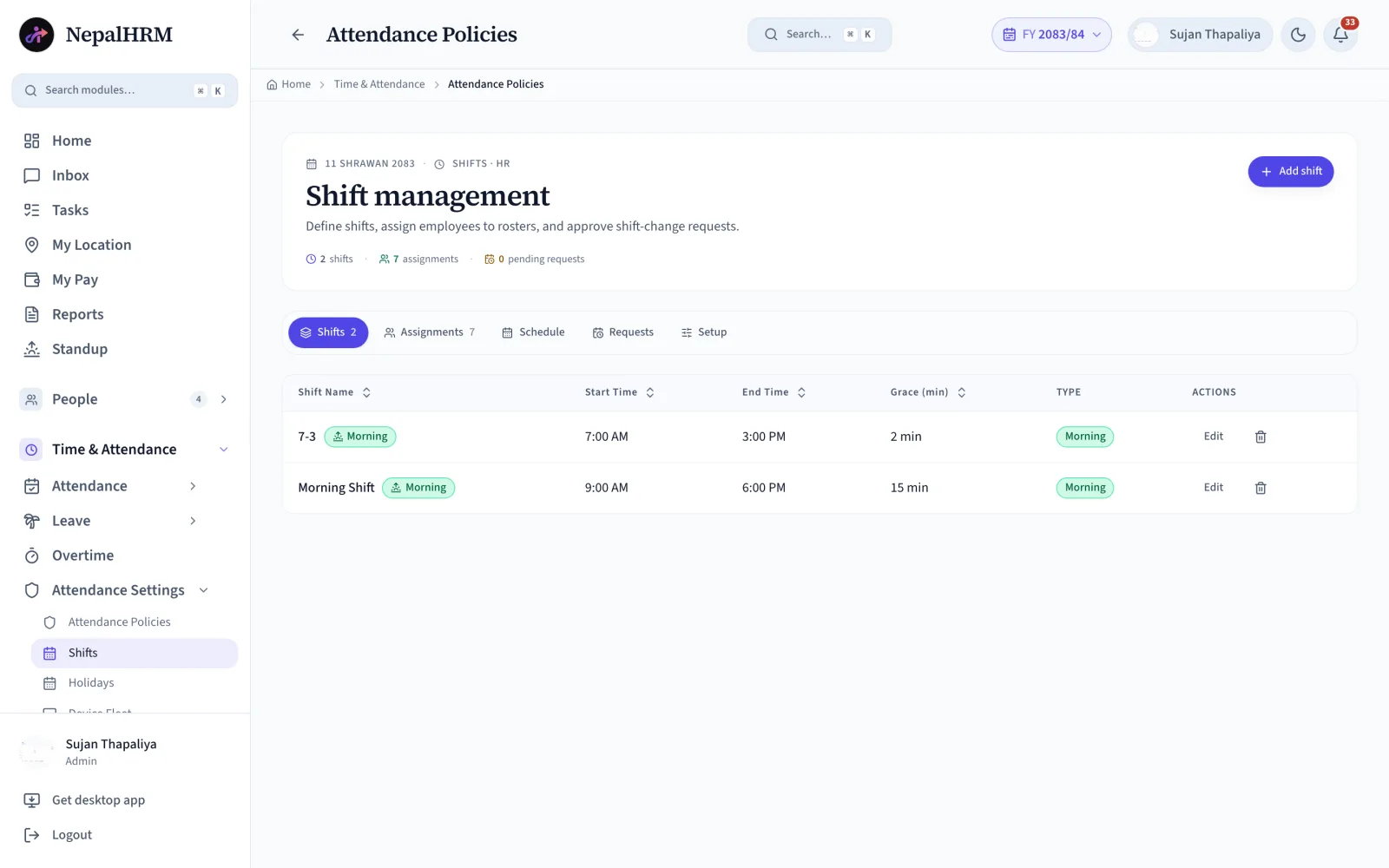
What is shift and overtime management software?
Shift management software says who is meant to be working when, and overtime management says what to pay for the hours beyond that. The two belong together: overtime only means something measured against an assigned shift, which is why a roster kept in a spreadsheet produces overtime nobody can verify. NepalHRM assigns the roster, reads the actual punches against it, and sends only approved hours to payroll.
- Every shift carries a start, an end, a grace period and a night-shift flag.
- Rosters are assigned per employee or as rotating schedules, with the dates they apply from.
- Overtime is measured against the shift the employee was actually assigned, not against a fixed office day.
- Overtime is approved before it pays, so an unusual month is a decision rather than a surprise.
- Approved overtime hours land in that month's salary sheet automatically.
Last updated · Reviewed by Rajendra Regmi, Co-founder
Built for shift-based businesses across Nepal
- Multiple Shifts
- Morning, Evening & Night
- Fixed + Rotating
- Flexible shift scheduling
- Verified Overtime
- Based on attendance records
- OT → Payroll
- Approved hours added to payroll
Schedules on Whiteboards, Overtime on Trust
When shifts are managed on whiteboards and overtime is reported verbally, records become difficult to verify. HR and finance then spend extra time checking attendance, resolving disputes, and correcting payroll.
- Night and rotating shifts tracked by hand, so swaps go unrecorded
- Overtime claimed from memory, with no punch data to back it
- Late arrivals argued case by case, with no consistent grace rule
- Finance re-computes OT hours in Excel before every payroll run
Shifts, Punches and Overtime in One Connected System
Assigned shifts define working hours, biometric punches record actual attendance, and NepalHRM identifies eligible overtime for approval.
What NepalHRM gives you
- Every shift has a start, end, grace period and night-shift flag
- Rosters assigned per employee or as rotating schedules, with dates
- Overtime measured against the assigned shift, approved before it pays
- Approved OT hours land in that month's salary sheet automatically
All Features for Shifts and Overtime in NepalHRM
From defining a night shift to paying overtime in the salary sheet, everything a Nepali company needs to run schedules without a whiteboard.
Define each shift once, exactly as it runs
Morning, evening, night or flexible, each with its own start time, end time, label, grace minutes and break schedule. Tick Night shift where it crosses midnight.
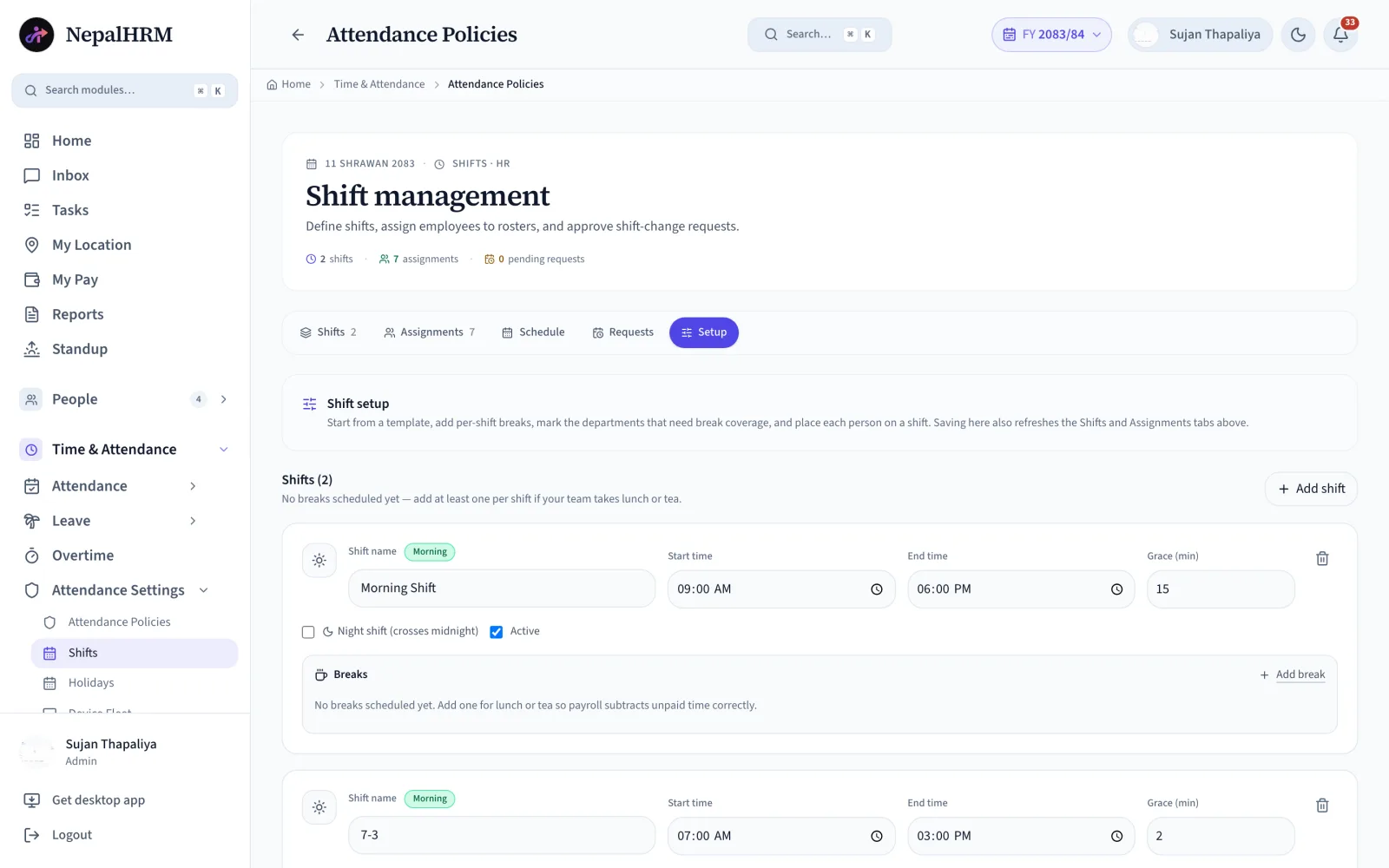
- Shifts crossing midnight (23:00 to 07:00) group both halves under the day the shift started.
- Grace minutes are forgiven and never counted toward late-deduction tiers.
- Per-shift breaks let payroll subtract unpaid lunch or tea time correctly.
Everything You Need to Run Shifts in One Place
From defining a night shift to paying overtime in the salary sheet, everything a Nepali company needs to run schedules without a whiteboard.
Custom Shifts
Morning, evening, night or flexible, each with its own start time, end time and label.
Night-Shift Handling
Shifts crossing midnight (23:00 to 07:00) group both halves under the day the shift started: one row, not two days.
Grace Periods
Lateness within the grace window (e.g. 15 min) is forgiven and never counted toward late-deduction tiers.
Weekly Off Days
Set the days each shift doesn't work. Linked attendance policies use them as weekly offs automatically.
Fixed & Rotating Rosters
Assign one employee or bulk-assign many, fixed or rotating, with optional start and end dates.
Weekly Schedule Builder
Select cells, apply a shift, mark day-offs and time-off. Build the whole week in a grid, no whiteboard.
Draft to Publish
Scheduled shifts stay in draft while you plan. Publish the week when it's ready and the team sees it instantly.
Overtime Tracking
Extra hours are measured against the assigned shift using real biometric punch data.
OT Approval Workflow
Overtime pays only after a manager approves it, with the punch log as evidence.
Payroll Integration
Approved OT hours flow straight into the month's salary sheet, PF and eTDS intact.
Late Alerts
15+ minutes late on 3 or more days in a month auto-flags in HR Alerts. HR decides; nothing is auto-deducted.
Punch Logs & Summaries
Raw punch logs and workday summaries per shift, filterable by date, device and employee.
Move Schedules From the Whiteboard to Payroll-Ready Hours
A shift assignment is only the start. NepalHRM turns it into tracked attendance, verified overtime, and a number payroll can actually pay.
Manual Scheduling & OT
- Weekly schedules drawn on a whiteboard or shared sheet
- Shift swaps agreed verbally; the record never updates
- OT hours self-reported at month end, disputed at payday
- Night-shift allowances tracked separately, often missed
How to Set Up Shifts & Overtime?
Four steps, one afternoon. Your schedule runs itself from then on.
- Name, start and end time, grace minutes (e.g. 15), weekly off days, and tick “Night shift” where it crosses midnight.
- In the Assignments tab, assign one employee or bulk-assign many, fixed or rotating, with optional start and end dates.
- In the Schedule tab, select cells, apply shifts, mark day-offs, then hit Publish Week when the draft is ready.
- Managers approve shift-change and OT requests; approved hours land in that month's payroll automatically.
One Schedule, Different Views for Different Teams
Everyone sees exactly what they need: nothing more, nothing missing.
For Employees
Know your shift, claim your hours
- See your assigned shift and upcoming schedule
- Request a shift change from web or mobile
- OT hours counted from your punches, not memory
For Managers
Staff every hour without surprises
- Build the week in draft, then publish it to the team
- Approve shift-change and OT requests with context
- Late-arrival flags surface automatically (3 days × 15 min)
For HR & Finance
Payroll-ready hours, zero re-entry
- Define shifts, weekly offs and grace rules once
- Workday summaries and punch logs for every shift
- Approved OT flows into the salary sheet, PF and eTDS intact
Shift & Overtime Management Built for Every Business in Nepal
Scheduling gets harder as teams grow, shifts rotate, and overtime piles up. NepalHRM handles shifts for businesses of every size, from every industry.
Shifts Connect Every Module
A published shift is not a separate spreadsheet. It drives attendance, verifies overtime and feeds payroll, all from one platform.
Attendance & Biometric
Punches from your biometric devices are matched against the assigned shift, so late, early-out and OT are computed, not claimed.
Payroll Software
Approved OT hours reach that month's salary sheet at the rate you define. No Excel exports, and PF/eTDS stay consistent.
Leave Management
Approved leave and time-off show on the schedule grid, so a rostered shift is never counted as an absence.
Employee Management
Shift assignments and attendance policies follow the employee profile and their department.
Mobile App
Employees check their shift and submit shift-change requests, managers approve, from Android and iOS.
Reports & Exports
Punch logs, workday summaries and OT reports export to Excel, PDF or CSV whenever finance asks.
Simple, Transparent Pricing
No Hidden Fees
NepalHRM gives you enterprise-grade HR software at a price built for Nepali businesses of every size.
- All core HR modules
- Nepal payroll compliance
- PF, SSF, CIT & eTDS
- Biometric integration
- Free onboarding support
- Regular feature updates
- Multi-company support
- BS + AD calendar
Free trial available, no card required · No setup fees · Cancel anytime
Access NepalHRM from the
Web, Android and iOS
Build the roster from the desk, approve shift changes and overtime from mobile, and let employees check their shift anytime.
Frequently Asked Questions
Everything you need to know about NepalHRM shift and overtime management before you get started.
Yes. Tick “Night shift (crosses midnight)” when creating the shift. Attendance, day-summaries and the Activity Tracker group both halves under the date the shift started, so HR sees the full shift in one row instead of split across two days.
In the Schedule tab, select cells in the week grid, pick a shift and click Apply, or mark day-offs and time-off. Everything stays in draft until you hit Publish Week, so you can plan freely before the team sees it.
Assign a shift as fixed or rotating, individually or with bulk assign, with optional start and end dates. The schedule cycles automatically and everyone sees their upcoming shifts.
Overtime is the difference between biometric punch times and the assigned shift, minus grace. It becomes payable only after a manager approves it.
Directly. Approved OT hours land in that month's salary sheet at the rate you define, with no Excel exports, and PF and eTDS stay consistent.
Lateness inside the shift's grace window is forgiven and never counted toward late-deduction tiers. Beyond it, employees 15+ minutes late on 3 or more days in a month are flagged in HR Alerts. Nothing is auto-deducted; HR decides.
Each shift defines the days it doesn't work (e.g. Saturday). Attendance policies linked to that shift use these as weekly offs, and the schedule grid shows them automatically.
Yes. The NepalHRM mobile app shows each employee's assigned shift and schedule, and lets them submit shift-change requests from anywhere.
Official Working Hours & Overtime Sources
Overtime in Nepal is statute-rated: the Labour Act 2074 sets a minimum of 1.5× the hourly rate and caps overtime at 4 hours a day and 24 hours a week. NepalHRM keeps the rate, the thresholds and the caps configurable per policy, so you can match the law and your own agreement instead of a hard-coded number.
- Labour Act 2074 (2017), Section 32Overtime rate (at least 1.5×) and 4h/day, 24h/week caps
- Ministry of Labour, Employment & Social SecurityWorking hours, rest days and shift-work circulars
- Social Security Fund (SSF)Contributions on overtime and shift allowances
- Inland Revenue Department (IRD)Tax treatment of overtime pay in the salary sheet
Shift and overtime is one module of the all-in-one HR software for Nepal, so a published roster and its approved overtime price themselves on the payslip.
Shift and overtime terms, defined
What the Labour Act 2074 fixes about a working day, and what a roster is free to decide.
- Working Hoursकामको समयNepal's Labour Act 2074 sets working hours at eight a day and forty-eight a week, with at least one day of rest each week. Time worked beyond that is overtime and carries the higher rate.
- Shift Rosterपालो तालिकाA shift roster is the published schedule of who works which shift on which day. It is what attendance is measured against: without a roster, a punch at 14:00 cannot be classified as on time or late.
- Overtimeअतिरिक्त समयOvertime is time worked beyond the standard eight-hour day or forty-eight-hour week. Under Nepal's Labour Act 2074 it is paid at one and a half times basic remuneration and is capped at four hours a day and twenty-four hours a week.
- Public Holidaysसार्वजनिक बिदाPublic holidays are the days off an employer must grant in addition to the weekly rest day. The Labour Act 2074 sets thirteen days a year, with one additional day for female employees, and the specific dates follow the government's annual calendar.
All HR and payroll terms used in Nepal are defined in the glossary, each with the Act or rate it comes from.
Shifts and overtime, by sector
Section 31 of the Labour Act 2074 sets one overtime rate. Everything about how the hours are shaped before that rate applies is sector-specific.
- Hospitals & clinicsNight shifts grouped under the day they started, and a night allowance priced from punched time inside a configured window.
- Hotels & restaurantsSplit shifts built from paid and unpaid breaks, with per-weekday exceptions and a roster per outlet.
- Manufacturing & constructionRotating rosters with a night flag, and five overtime rate tiers seeded from the statutory one.
All eight sector setups are on the HR and payroll software by industry hub, each one a configuration of the same platform rather than a different product.
Ready to Replace Manual Shift and Overtime Tracking?
Create employee shifts, publish weekly schedules, verify overtime from attendance records, and send approved hours directly to payroll with NepalHRM.
- No credit card
- Free onboarding
- Set up in one day
- Cancel anytime